How to Remove Image Backgrounds Online for Free
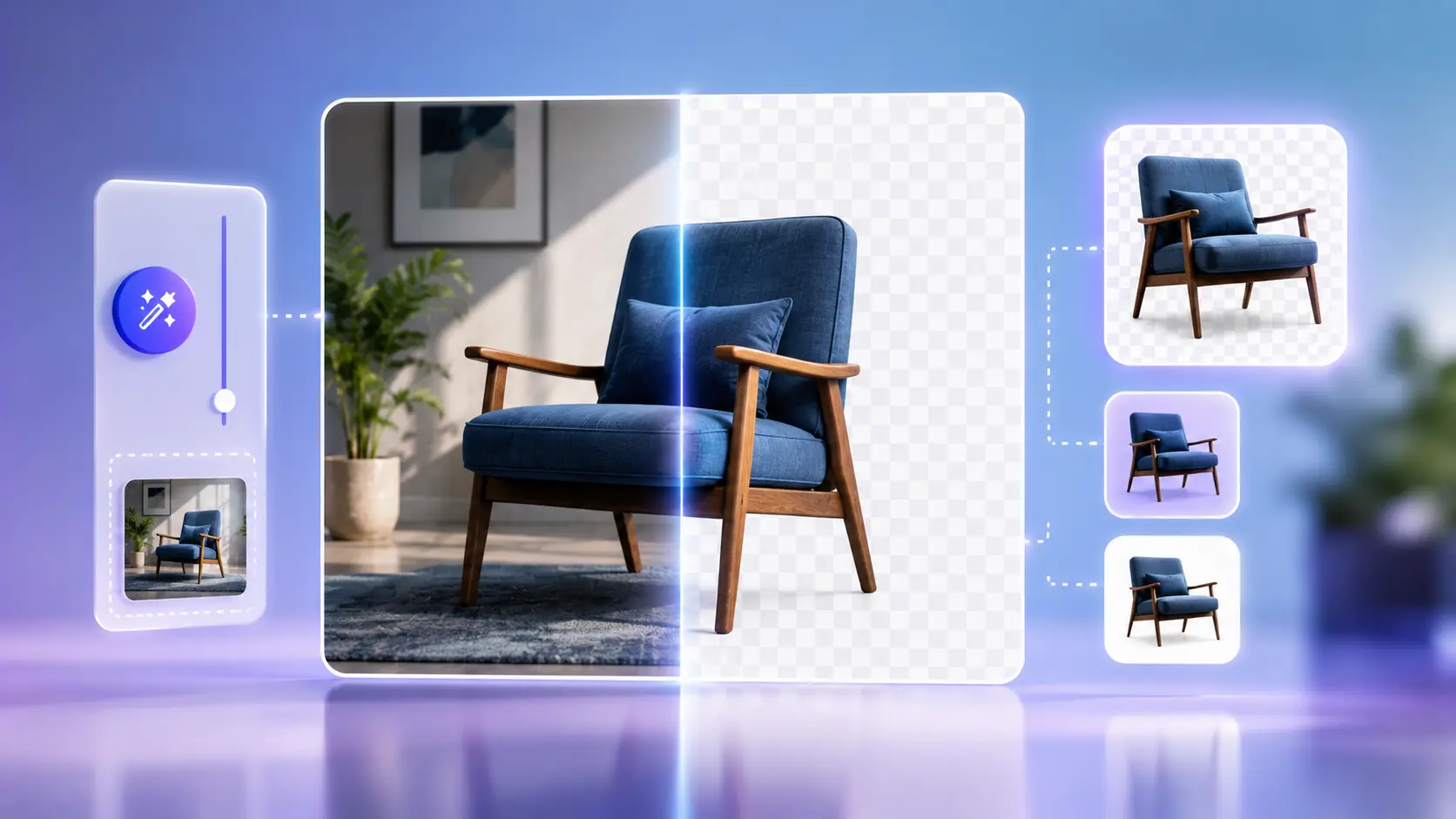
A clean cutout can turn a casual snapshot into a professional product shot, a polished profile picture, or a social graphic that fits any layout. You used to need Photoshop, GIMP, or hours with the magic wand. Today you can remove image backgrounds online in minutes-often for free-using AI that understands what's subject and what's backdrop.
This guide explains why background removal matters, where it's used most, how AI cutouts work, which formats to export, and how to finish your files with the Background Remover, PNG to JPG Converter, and Image Compressor on Sounez.
Why remove the background?
Backgrounds compete with your subject. On e-commerce sites, a busy room behind a product looks unprofessional and breaks visual consistency across a catalog. On LinkedIn or dating apps, a distracting backdrop pulls attention away from your face. In design work, you need the subject isolated so you can place it on brand colors, gradients, or other photos.
Removing the background gives you control: drop the subject onto white for Amazon-style listings, onto a solid brand color for ads, or onto transparency so the image works on any page without a visible box around it. That flexibility is why cutouts are standard for sellers, creators, and marketers who don't have a full-time designer on staff.
A transparent cutout fits any layout. A cluttered original photo doesn't.
Common use cases
Background removal shows up everywhere visual quality affects trust or clicks:
- Product photos: Marketplaces and Shopify stores expect clean subjects on white or neutral backgrounds. A consistent catalog reads as trustworthy and converts better than mixed amateur shots.
- Profile pictures: Headshots for LinkedIn, Teams, or creator profiles look sharper when the background is simplified or replaced with a soft blur or solid color.
- Thumbnails: YouTube and blog thumbnails often layer a person or object over bold text and shapes. A cutout lets you stack elements without a rectangular photo frame.
- Ads and banners: Display ads need subjects that sit cleanly on brand gradients or photography. Transparent PNGs import directly into Canva, Figma, or ad builders.
- Social posts: Instagram stories, Pinterest pins, and TikTok covers benefit from stickers, products, and portraits that float above templates instead of sitting inside obvious white boxes.
In each case, the goal is the same: separate the thing people should look at from everything else. Online AI tools make that separation fast enough to do per image, not only for hero assets.
How AI background removal works
Traditional tools asked you to click edges or paint masks pixel by pixel. AI background removal uses a segmentation model trained on millions of images. It estimates which pixels belong to the foreground-person, product, pet, logo-and which belong to the background, then outputs a mask you can turn into transparency.
The pipeline, simplified:
- You upload a JPG, PNG, or WebP image.
- The model analyzes color, edges, depth cues, and object shape.
- It generates a mask: white where the subject is, black where the background should go.
- The tool applies the mask so background pixels become transparent (or a color you choose).
- You download a PNG (or preview before/after) and use it in your project.
Hair, glass, and soft shadows are the hard cases. Good models feather the mask along those edges so halos are less visible than with crude selection tools. For best results, shoot or export with reasonable resolution, avoid backgrounds that match the subject's color, and check the cutout at 100% zoom before publishing.
The Sounez Background Remover runs this workflow in your browser so you can go from upload to transparent PNG without opening desktop design software.
Best formats for transparent backgrounds
Transparency requires a format with an alpha channel. That narrows the field:
- PNG: The default choice for cutouts. Lossless, widely supported, and handles transparency in every browser and design app. File sizes are larger than JPG, especially for photos, but necessary when you need see-through pixels.
- WebP: Supports transparency with often smaller files than PNG. Excellent for modern websites; keep PNG as a fallback if you serve older clients.
- SVG: Only for true vector art (icons, logos drawn as paths)-not for photographic cutouts from AI removal.
- JPG: Does not support transparency. Use JPG only after you've placed the subject on a final background and no longer need alpha.
After exporting a transparent PNG, run large files through the Image Compressor to shrink weight for the web while keeping edges sharp enough for your use case.
PNG vs JPG for transparent images
This is a common point of confusion after background removal. You removed the background to get transparency-but JPG cannot store transparent pixels. If you save a cutout as JPG, the tool fills former transparent areas with a solid color (usually white), and you lose the ability to layer the image on arbitrary backgrounds.
Use PNG when: you need transparency for overlays, marketplaces, slides, or design files; the image has sharp edges or text; or you'll edit the cutout again later.
Use JPG when: the image is a final photo on a fixed background (e.g. white catalog shot), file size matters more than layering, and you will not need transparency again. The PNG to JPG Converter is the right step only after that decision-never before, if you still need a floating subject.
For a deeper comparison of when each format wins, see PNG vs JPG and how to convert images. For smaller PNGs without giving up transparency, pair removal with the Image Compressor.
Remove the background, then save as PNG. Convert to JPG only when transparency is done forever.
Frequently Asked Questions
Can I remove image backgrounds online for free?
Yes. Use the Background Remover to upload a photo, process it with AI, and download a cutout without paying for desktop software subscriptions.
What image formats work best for background removal?
Upload JPG, PNG, or WebP. Download the result as PNG when you need transparency. WebP is a strong web alternative if your stack supports it end to end.
Does AI background removal work on hair and fine details?
Modern models handle hair and soft edges well when the subject contrasts with the background. Zoom in on the result and re-run or touch up only if you see halos or missing strands.
Is it safe to remove backgrounds in the browser?
Prefer tools that process locally or clearly state how uploads are handled. Avoid sending confidential documents or unreleased product shots to services you don't trust.
Should I use PNG or JPG after removing a background?
Stay on PNG (or transparent WebP) until the image is placed on its final background. Use the PNG to JPG Converter only when transparency is no longer required.
Remove your next background in one click
Whether you're fixing product shots, refreshing a profile photo, or building social creative, background removal doesn't have to mean learning complex design software. Upload your image to the Background Remover, download a transparent PNG, then optimize with the Image Compressor or convert with the PNG to JPG Converter when you're ready for a smaller, non-transparent file. Start with a challenging photo and review the cutout before using it in a final design.
Found this article useful?
Written by
Nesou is a web developer and independent creator who built Sounez from scratch in 2024. The site covers practical browser tools for image editing, CSS design, social media publishing, file conversion, and everyday productivity — all written and maintained by a single developer with a focus on privacy-first, account-free tooling. About Sounez · GitHub
Ready to put this into action?
Open Background Remover AI and try it now. Free, no account needed.