PNG vs JPG: Differences and How to Convert Images
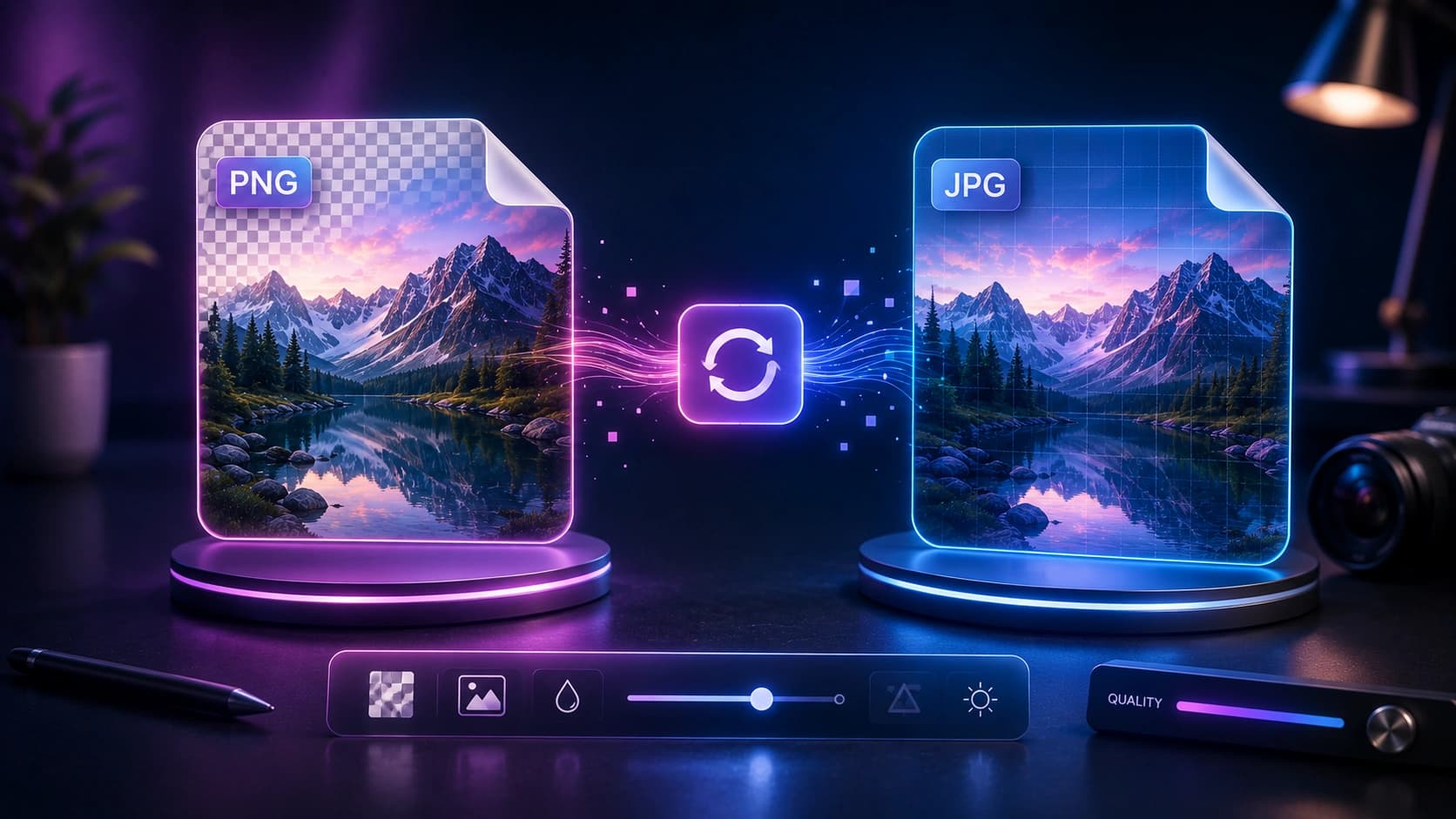
PNG and JPG are both everywhere on the web, but they're built for different jobs. Using the wrong format costs you either file size (PNG where JPG would do) or quality (JPG where PNG is needed). Understanding the difference takes five minutes and saves you from making the same mistake on every project.
This guide explains both formats, compares them directly, covers what happens to transparency during conversion, and shows you how to convert PNG to JPG safely using the PNG to JPG Converter, entirely in your browser.
What is PNG?
PNG (Portable Network Graphics) is a lossless image format. "Lossless" means that no image data is discarded during compression, the file is smaller than the original, but the image quality is identical to the source.
PNG's key properties:
- Lossless compression: no quality loss, ever
- Supports transparency: pixels can be fully transparent, semi-transparent or opaque (alpha channel)
- Larger file sizes: especially for photos with many colors
- Best for: logos, icons, UI screenshots, diagrams, images with text, anything that needs a transparent background
PNG was created in 1996 as a patent-free replacement for GIF. According to the W3C PNG specification, it was designed specifically for lossless compression of raster images.
What is JPG?
JPG (also written JPEG, Joint Photographic Experts Group) is a lossy image format. "Lossy" means that some image data is permanently discarded during compression to achieve smaller file sizes. The amount of data discarded is controlled by a quality setting.
JPG's key properties:
- Lossy compression: some quality is lost, but the loss is usually invisible at 80%+ quality
- No transparency support: all pixels must be fully opaque
- Much smaller file sizes: especially for photos
- Best for: photographs, product images, hero images, any image with smooth gradients and many colors
PNG for logos and transparency. JPG for photos. That's the rule 90% of the time.
PNG vs JPG: direct comparison
- File size: JPG wins for photos (often 5-10x smaller). PNG wins for simple graphics with flat colors.
- Quality: PNG is always lossless. JPG at 85%+ quality is visually identical to PNG for photos.
- Transparency: PNG supports it. JPG does not.
- Editing: PNG is better for images you'll edit repeatedly (no quality degradation on re-save). JPG loses quality each time it's re-saved.
- Web performance: JPG loads faster for photos. Use WebP for the best of both worlds (lossless or lossy, with transparency support).
- Print: Both work. PNG is preferred for graphics; JPG at 300 DPI is standard for photos.
What happens to transparency when converting PNG to JPG
This is the most important thing to understand before converting. JPG has no alpha channel, so it cannot represent transparent pixels. When you convert a PNG with transparency to JPG, every transparent pixel must be replaced with a solid color.
The PNG to JPG Converter fills transparent areas with white, which is the standard behavior and works correctly for most images. If your PNG has a transparent background that you want to appear as a different color in the JPG, edit the background color in an image editor before converting.
- Logo on transparent background to JPG: The transparent area becomes white. The logo itself is preserved.
- Photo with no transparency to JPG: No visible change at 85%+ quality.
- Screenshot with transparent UI elements to JPG: Transparent areas become white. May look different from the original.
When to convert PNG to JPG
Converting PNG to JPG makes sense when:
- You have a photo saved as PNG (common when exporting from design tools) and want to reduce file size for web use
- You're uploading to a platform that doesn't accept PNG or has a file size limit
- You want to reduce page load time and the image doesn't need transparency
- You're sending images by email and need smaller attachments
Do not convert PNG to JPG when:
- The image has a transparent background you need to preserve
- The image contains text, diagrams or sharp edges (JPG compression creates artifacts)
- You'll need to edit and re-save the image multiple times
How to use the PNG to JPG Converter
The PNG to JPG Converter runs entirely in your browser using the Canvas API. Your images are never uploaded to any server.
- Open the PNG to JPG Converter.
- Drag and drop your PNG file onto the upload area, or click to browse and select it.
- Adjust the quality slider. For web use, 80-90% is the sweet spot. For print, use 95%+.
- Click Convert to JPG. The conversion happens instantly in your browser.
- Review the before/after preview and file size comparison. If the quality looks good, click Download JPG.
After converting, consider running the JPG through the Image Compressor for additional size reduction without further quality loss.
Converting in the browser means your images never leave your device. No privacy risk, no upload wait.
Frequently Asked Questions
When should I use PNG instead of JPG?
Use PNG when you need transparency, pixel-perfect sharpness (screenshots, diagrams, text-heavy images), or lossless quality for editing. Use JPG for photos and images without transparency.
Does converting PNG to JPG lose quality?
JPG uses lossy compression, so some quality is lost. At 85-90% quality, the difference is invisible to the human eye for most photos. For images with sharp edges or text, the loss may be more noticeable.
What happens to transparent areas when converting PNG to JPG?
JPG does not support transparency. Transparent areas are filled with white by default in the Sounez PNG to JPG Converter.
Is it safe to convert images in the browser?
Yes. The Sounez PNG to JPG Converter processes everything locally using the Canvas API. Your images never leave your device.
What quality setting should I use?
For web use, 80-90% quality is the sweet spot. For print or archival purposes, use 95-100%. For thumbnails and previews, 70-75% is fine.
Conclusion: right format, right job
PNG and JPG are both excellent formats, for different jobs. Use PNG for logos, icons and anything with transparency. Use JPG for photos and web images where file size matters. When you need to convert, the PNG to JPG Converter does it instantly in your browser with no upload required. For further size reduction after converting, run the result through the Image Compressor. For a deeper dive into image optimization for SEO, read how to compress images without losing quality.
Found this article useful?
Written by
Nesou is a web developer and independent creator who built Sounez from scratch in 2024. The site covers practical browser tools for image editing, CSS design, social media publishing, file conversion, and everyday productivity — all written and maintained by a single developer with a focus on privacy-first, account-free tooling. About Sounez · GitHub
Ready to put this into action?
Open PNG to JPG Converter and try it now. Free, no account needed.