
How to Convert PDF to Word Without Losing Formatting
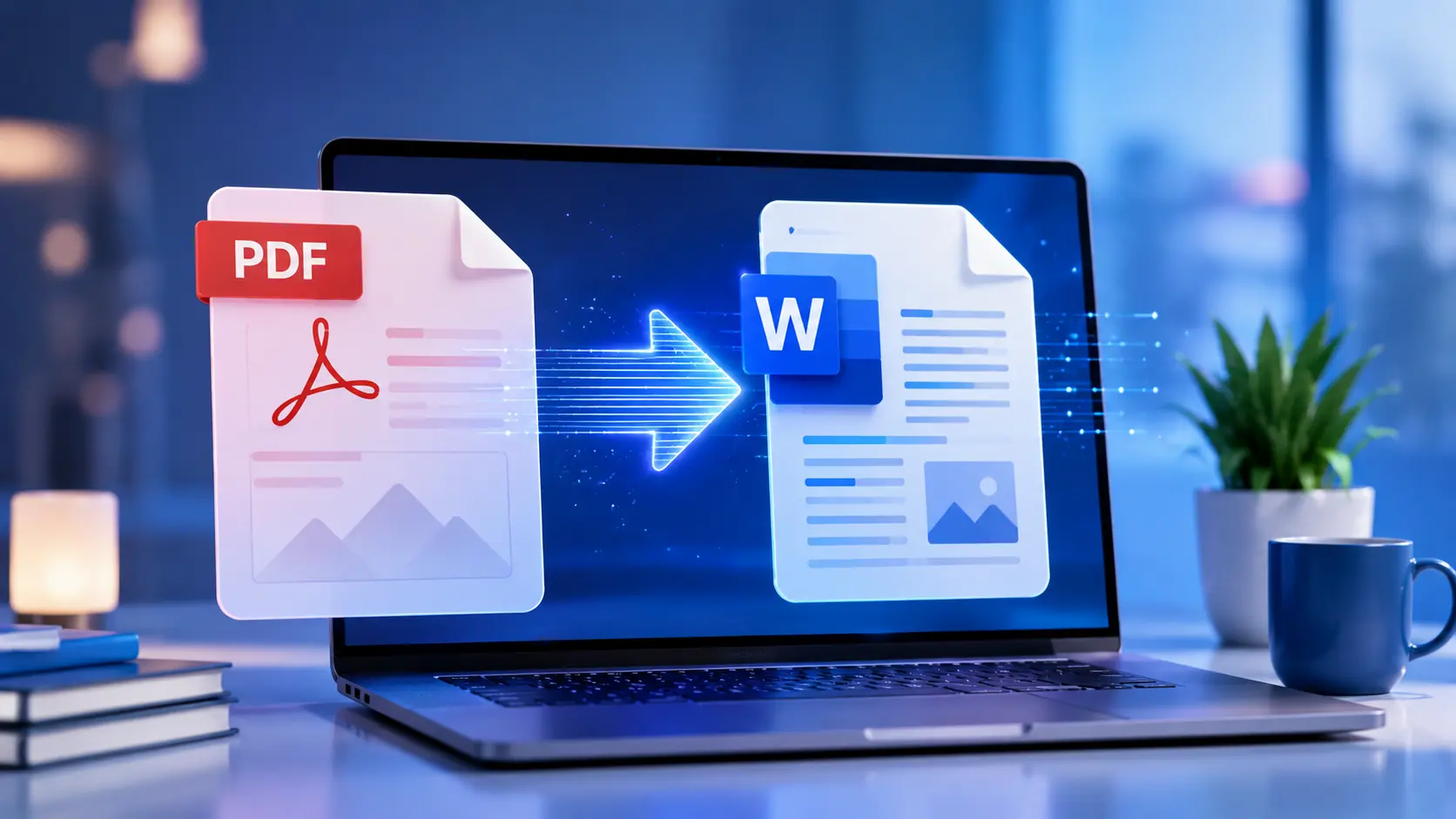
PDFs are excellent for sharing finished documents, but they are awkward when you need to edit text, update a table, or reuse content in a report. Converting a PDF to Word gives you an editable .docx file you can change, comment on, and send back for review.
The catch is that PDF and Word work differently. A PDF locks layout in place; Word reflows text as you edit. That gap is why some conversions look perfect and others need a quick cleanup pass. This guide explains what to expect, how to convert online, and how to keep formatting as clean as possible using the PDF to Word Converter.
Why convert a PDF to Word?
People convert PDFs to Word for practical reasons, not because they dislike PDFs. Common situations include:
- Editing content: fix typos, update dates, or revise contract language without rebuilding the document from scratch
- Reusing text: pull paragraphs into proposals, emails, or slide decks
- Collaboration: track changes and comments in Word, which many teams already use
- Accessibility: adjust headings, alt text, and structure for screen readers more easily in Word
- Templates: turn a one-off PDF into a reusable template for future versions
If you only need to sign or share a final file, staying in PDF is fine. When the document will change again, Word is usually the better workspace.
What can go wrong during PDF conversion?
Knowing the typical failure modes saves time. Most problems fall into a few categories:
- Font substitution: if the PDF uses fonts not installed on your computer, Word replaces them and line breaks may shift
- Layout drift: multi-column pages, text boxes, and floating images may land in slightly different positions
- Broken tables: merged cells and nested tables sometimes split into separate tables or plain text
- Scanned pages: image-only PDFs produce gibberish or empty paragraphs unless OCR runs first
- Security restrictions: password-protected or copy-disabled PDFs may block extraction entirely
Text-based PDFs exported from Word, Google Docs, or InDesign usually convert well. Scans, slide exports, and heavily designed marketing PDFs often need manual touch-up afterward.
Expect a strong first draft, not a pixel-perfect clone. A five-minute review in Word beats re-converting the same file ten times.
How to convert PDF to Word online
Online conversion is the fastest route for most people. You do not need Microsoft Office installed to start, and you can work from any device with a browser.
- Open the PDF to Word Converter.
- Upload your PDF. Use the original file when possible; re-saving through multiple apps can flatten layers and make editing harder.
- Wait for processing. Simple documents finish in seconds; longer files with many pages take a bit more time.
- Download the .docx file and open it in Word, Google Docs, or LibreOffice.
- Scan the document: check headings, page breaks, tables, footers, and images on the first and last pages, where issues often appear.
After conversion, run a quick word count with the Word Counter if you are checking length limits for essays or applications. If headings or labels need consistent casing, the Text Case Converter can normalize titles in seconds before you paste them back into the document.
Tips to preserve formatting
You cannot control every detail of an automated conversion, but these habits improve results:
Start with the best source PDF
Export directly from the app that created the document. A PDF printed from a web page or saved from a screenshot is harder to edit than a native export.
Prefer text-based PDFs over scans
If you can select text in the PDF viewer, conversion will be much cleaner. If you cannot select text, plan on OCR (see below).
Simplify before you convert
When you control the source file, use standard fonts, avoid excessive text boxes, and keep tables straightforward. Complex layering is what breaks in Word.
Fix structure in Word, not in the converter
Apply heading styles (Heading 1, Heading 2) after conversion for a logical outline. Clear structure helps accessibility tools and makes long documents easier to navigate.
Check images separately
Low-resolution images may look soft in Word. Replace critical graphics from your original assets if quality matters for print or presentations.
When OCR is needed
OCR turns pictures of text into real characters Word can edit. You need it when:
- The PDF is a flat scan from a printer or phone camera
- Text highlights as an image block instead of individual words
- Copy and paste from the PDF yields nothing useful
Modern converters often run OCR automatically on image-based pages. Quality depends on resolution (300 DPI is a good target), straight alignment, and contrast. Skewed photos, handwriting, and faint toner usually produce errors you must correct manually.
After OCR, read through the document once for swapped letters (especially in numbers and proper nouns). For legal or financial scans, treat OCR output as a draft until a human verifies critical figures.
PDF to Word conversion FAQ
Can I convert a PDF to Word without losing formatting?
You can get close, but no tool guarantees a perfect match. Simple, text-based PDFs convert best. Review tables, headers, and fonts in Word and adjust what moved. One careful pass usually beats chasing a flawless automatic result.
Is it safe to convert PDFs online?
Trustworthy services encrypt uploads and delete files after a short retention window. Read the privacy policy before uploading contracts or personal data. When in doubt, use a converter from a brand you recognize and avoid sharing files you would not email to a colleague.
Why does my converted Word file look different from the PDF?
PDFs are fixed-layout; Word reflows content. Font substitution, column shifts, and moved images are normal. Focus on whether the text is editable and the document is usable, then polish layout in Word.
When do I need OCR to convert a PDF to Word?
Use OCR when the PDF is a scan or image with no selectable text. OCR extracts characters from pixels so you can edit them. Clean, high-resolution scans produce the most accurate text.
What is the fastest way to convert PDF to Word?
Upload the PDF to the Sounez PDF to Word Converter, download the .docx, and fix small issues in Word. Use the Word Counter and Text Case Converter for quick cleanup of length and headings without retyping.
Final recommendation
Converting PDF to Word is straightforward when you choose the right source file and set realistic expectations. Text-based PDFs become editable documents in minutes; scans need OCR and a careful proofread. After conversion, spend a few minutes on headings, tables, and images rather than hoping a second upload will fix everything.
For most everyday documents-reports, forms, resumes, and handouts-the fastest path is the PDF to Word Converter: upload, download, review, and edit. Pair it with the Word Counter and Text Case Converter when you need polished, consistent text without starting from a blank page.
Found this article useful?
Written by
Nesou is a web developer and independent creator who built Sounez from scratch in 2024. The site covers practical browser tools for image editing, CSS design, social media publishing, file conversion, and everyday productivity — all written and maintained by a single developer with a focus on privacy-first, account-free tooling. About Sounez · GitHub
Ready to put this into action?
Open PDF to Word Converter and try it now. Free, no account needed.